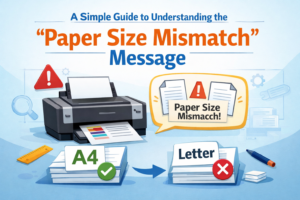
Understanding Paper Size Alignment Messages in Printing
(General Educational Guide) printerguidemanual.info publishes independent, educational content that explains general printing-related behaviors in a clear and simplified format. A “Paper Size Mismatch” message may...
Read More
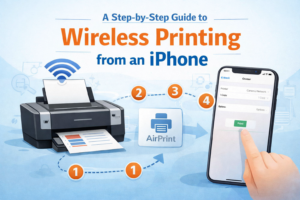
A Practical Guide to Wireless Printing from an iPhone
(General Educational Guide) printerguidemanual.info provides independent, educational content that explains common printing-related behaviors in a clear and structured format. Wireless printing allows an iPhone to...
Read More
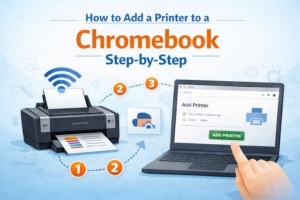
Easy Steps to Add a Printer to a Chromebook
(General Educational Guide) printerguidemanual.info publishes independent, educational content that explains general printing-related processes in a clear and simplified format. Printing from a Chromebook is designed...
Read More
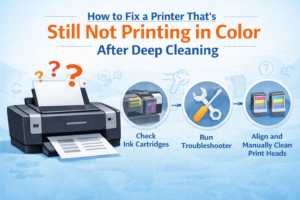
Restoring Color Printing After Deep Cleaning: A Simple Guide
(General Educational Guide) printerguidemanual.info provides independent, educational content that explains common printing-related behaviors in a clear and structured format. At times, a printing device may...
Read More
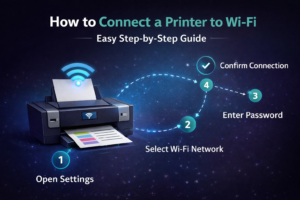
Setting Up a Printer on Wi-Fi: Step-by-Step Guide
(General Educational Guide) printerguidemanual.info publishes independent, educational content that explains common printing-related processes in a clear and simplified format. A wireless printer allows documents and...
Read More
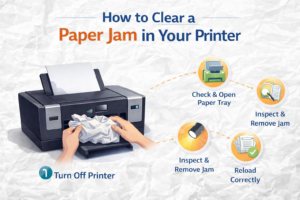
A Simple Guide to Clearing a Paper Jam in Your Printer
(General Educational Guide) printerguidemanual.info publishes independent, educational content that explains common printing-related behaviors in a clear and simplified format. A paper jam may interrupt printing...
Read More
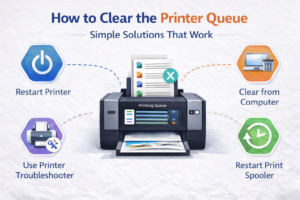
Clearing the Printer Queue: Simple Solutions That Work
(General Educational Guide) printerguidemanual.info publishes independent, educational content that explains common printing-related processes in a clear and simplified format. At times, a document may remain...
Read More
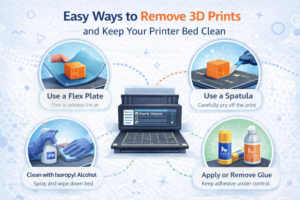
Simple Ways to Remove 3D Prints and Keep the Printer Bed Clean
(General Educational Guide) printerguidemanual.info publishes independent, educational content that explains general printing-related processes in a clear and simplified format. At times, a 3D printed object...
Read More